

The Problem
Out of the box, the Focusrite Vocaster Two USB shows up on Linux with a generic “Pro Audio” profile. Instead of properly named channels (Host Mic, Guest Mic, Loopback, etc.), you end up with a wall of anonymous “Auxiliary 0” through “Auxiliary 13”.
It is simply unusable: the channels are completely unidentifiable, making any configuration impossible.
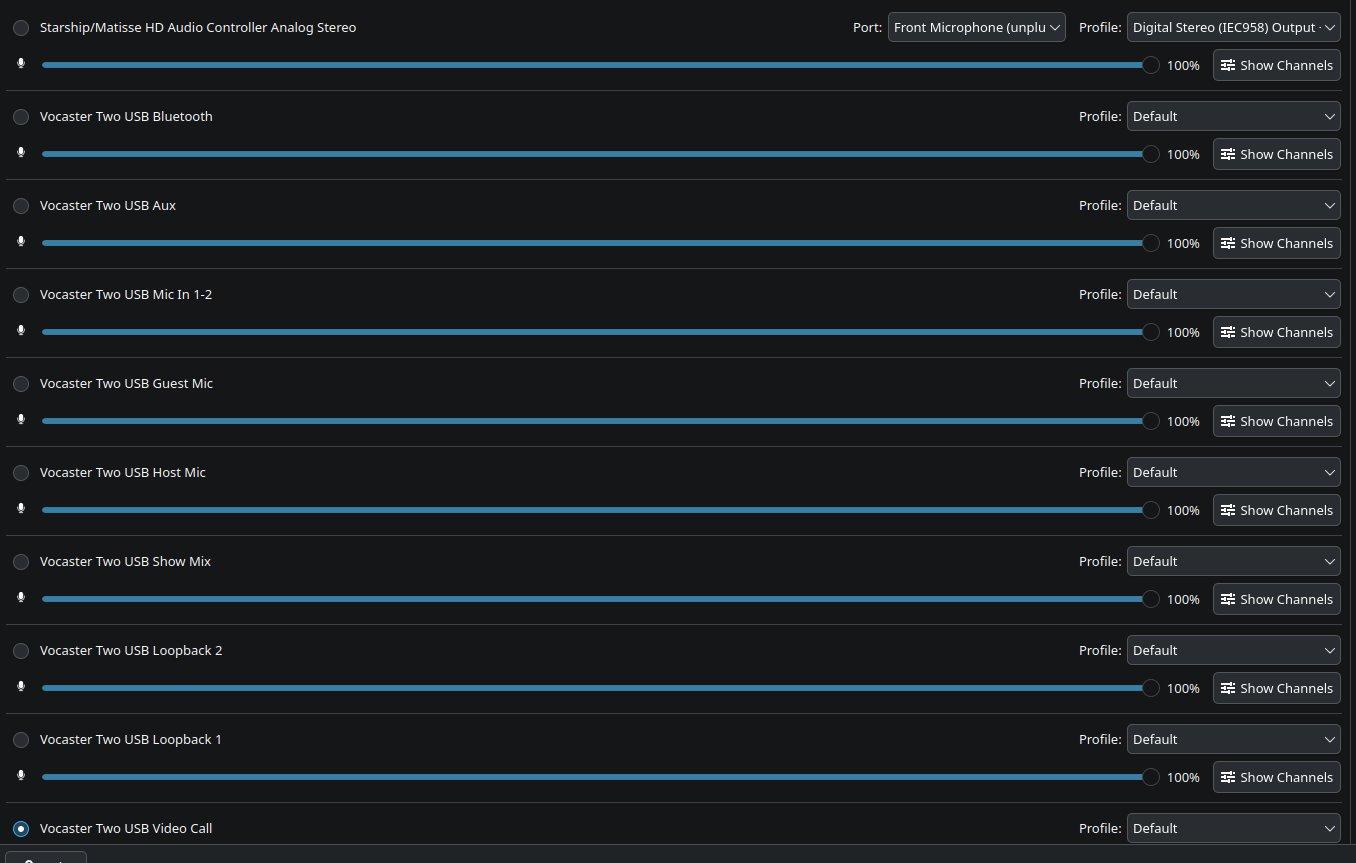
The alsa-ucm-conf project includes a dedicated UCM2 profile for the Vocaster, but on openSUSE Tumbleweed with PipeWire, two issues prevent it from loading:
- The
alsa-ucm-confpackage shipped by openSUSE often lags behind the GitHub repository and may not include the Vocaster profile yet. - Even after manually installing the UCM2 files, PipeWire does not use the ACP backend by default for USB audio devices (at least in my experience on openSUSE Tumbleweed — this may vary depending on your version and configuration), which prevents UCM2 profiles from being loaded.
Prerequisites
- openSUSE Tumbleweed with KDE Plasma
- PipeWire + WirePlumber (installed by default)
- Focusrite Vocaster Two USB plugged in
gitinstalled (sudo zypper install gitif needed)
Step 1: Update the UCM2 Files
Back up the current files, then replace them with the latest from GitHub:
# Backupsudo cp -r /usr/share/alsa/ucm2 /usr/share/alsa/ucm2.backup
# Download the latest versioncd /tmpgit clone https://github.com/alsa-project/alsa-ucm-conf.git
# Replace the filessudo rm -rf /usr/share/alsa/ucm2/*sudo cp -r /tmp/alsa-ucm-conf/ucm2/* /usr/share/alsa/ucm2/
# Cleanuprm -rf /tmp/alsa-ucm-confNote: This replaces all UCM2 profiles on the system, not just the Vocaster ones. If other devices depend on distribution-specific patches to their UCM2 profiles, this could affect them. The backup ensures you can always roll back.
Verify that the Vocaster files are present:
find /usr/share/alsa/ucm2 -iname "*vocaster*"
You should see four files: Vocaster-Two.conf, Vocaster-Two-HiFi.conf, and their Vocaster One equivalents.
At this point, you can confirm that ALSA itself can load the profiles:
ALSA_CONFIG_UCM2=/usr/share/alsa/ucm2 alsaucm -c "USB-Audio" list _verbsExpected output:
0: HiFi Default 1: Direct Direct Vocaster Two USBNote: The
-c "USB-Audio"argument uses the ALSA driver name for the card. This worked on my setup, but depending on your kernel version or ALSA configuration, you might need to use thehw:Xformat instead (where X is your card number, visible in/proc/asound/cards).
If you see this, the UCM2 files are correct. The remaining issue is getting PipeWire to actually use them.
Step 2: Force PipeWire to Use the ACP Backend with UCM
This is the key step. On my openSUSE Tumbleweed installation, PipeWire was not using the ACP (ALSA Card Profiles) backend for the Vocaster, which meant UCM2 profiles were ignored entirely. The symptom is that only “on” and “off” profiles appear for the device, with generic Auxiliary channels.
Note: The default value of
api.alsa.use-acpmay vary between distributions and WirePlumber versions. On some distributions, ACP is enabled by default for all devices. If your Vocaster already shows named profiles (HiFi, Direct) without any configuration, you may not need this step. The quick way to check: runpactl list cards | grep -A20 "Vocaster"and look at the available profiles.
We need to force PipeWire to use the ACP backend, which knows how to read UCM2 profiles.
First, find your device name:
pw-cli list-objects | grep "device.name.*Vocaster"You should see something like:
device.name = "alsa_card.usb-Focusrite_Vocaster_Two_USB_VBWU8YJ2A01F2F-00"The string after usb-Focusrite_Vocaster_Two_USB_ and before -00 is your Vocaster’s serial number. Note down the full device.name value.
Now create the WirePlumber configuration file:
mkdir -p ~/.config/wireplumber/wireplumber.conf.d/
cat > ~/.config/wireplumber/wireplumber.conf.d/50-vocaster-ucm.conf << 'EOF'monitor.alsa.rules = [ { matches = [ { device.name = "alsa_card.usb-Focusrite_Vocaster_Two_USB_VBWU8YJ2A01F2F-00" } ] actions = { update-props = { api.alsa.use-acp = true api.alsa.use-ucm = true } } }]EOFImportant: Replace the
device.namevalue with the one you found above if it differs.
Step 3: Restart PipeWire and Activate the HiFi Profile
# Restart the audio servicessystemctl --user restart pipewire pipewire-pulse wireplumber
# Wait a few seconds, then activate the HiFi profilesleep 2pactl set-card-profile alsa_card.usb-Focusrite_Vocaster_Two_USB_VBWU8YJ2A01F2F-00 HiFi
Verification
Check that the profiles are available:
pactl list cards | grep -A60 "Name: alsa_card.usb-Focusrite"In the “Profiles” section, you should now see:
Profiles: off: Off HiFi: Default Direct: Direct Vocaster Two USB pro-audio: Pro AudioActive Profile: HiFiAnd in the KDE audio settings (System Settings > Sound), the channels should now have proper names:
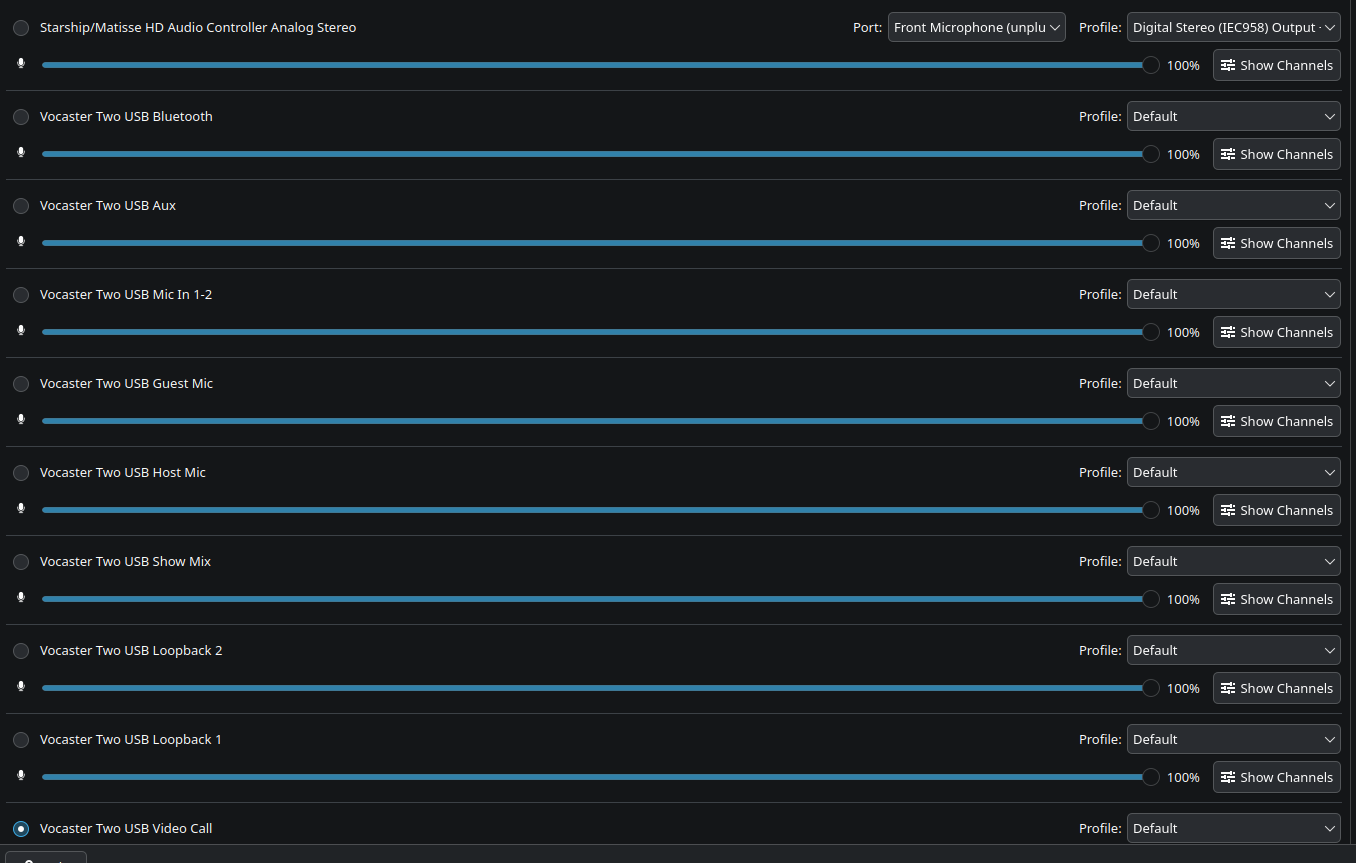
This configuration ensures that any application requesting microphone access will now display a clear list of all available input channels, allowing you to select exactly what you need (e.g., just your Host Mic, the full Show Mix, or even the Bluetooth/Aux inputs) instead of guessing between generic “Auxiliary” ports.
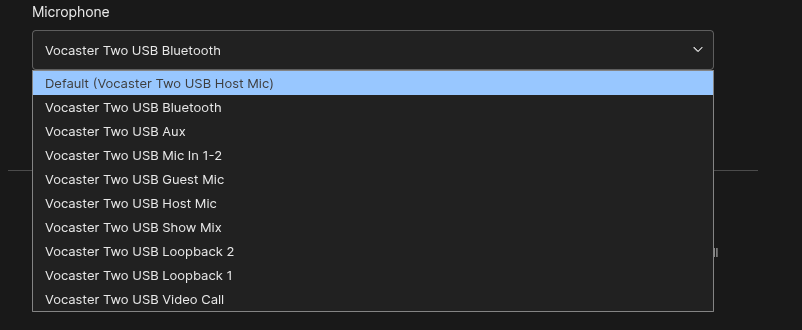
You should see the following recording devices:
- Vocaster Two USB Host Mic — your main microphone input
- Vocaster Two USB Guest Mic — second microphone input
- Vocaster Two USB Mic In 1-2 — combined mic inputs
- Vocaster Two USB Show Mix — the full show mix
- Vocaster Two USB Loopback 1 & 2 — loopback channels for routing audio
- Vocaster Two USB Video Call — dedicated video call channel
- Vocaster Two USB Bluetooth — Bluetooth audio passthrough
- Vocaster Two USB Aux — auxiliary channel
Troubleshooting
Restore the UCM2 Backup
If something goes wrong with the UCM2 files:
sudo rm -rf /usr/share/alsa/ucm2/*sudo cp -r /usr/share/alsa/ucm2.backup/* /usr/share/alsa/ucm2/Remove the WirePlumber Config
To revert to the default behavior:
rm ~/.config/wireplumber/wireplumber.conf.d/50-vocaster-ucm.confsystemctl --user restart pipewire pipewire-pulse wireplumberOnly “on” and “off” Profiles Appear
This means PipeWire is trying to use UCM but failing silently. The most likely cause is that api.alsa.use-acp is set to false. Make sure your WirePlumber config has both properties set:
api.alsa.use-acp = trueapi.alsa.use-ucm = trueSetting use-ucm = true alone is not enough — the ACP backend must also be enabled.
Useful Diagnostic Commands
# Check the Vocaster's USB IDcat /proc/asound/cardscat /proc/asound/USB/usbid
# Test UCM loading manuallyALSA_CONFIG_UCM2=/usr/share/alsa/ucm2 alsaucm -c "USB-Audio" list _verbs
# List available profiles via SPAspa-acp-tool -c 2 list-profiles
# Check device properties in PipeWirepw-dump | grep -A40 "Vocaster"
# Check PipeWire logs for errorsjournalctl --user -u pipewire -u wireplumber -b | grep -i "vocaster\|ucm\|spa.alsa"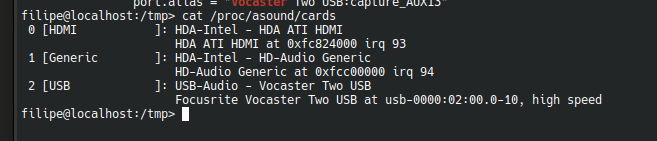
Why It Doesn’t Work Out of the Box
The root cause is in how WirePlumber configures the ALSA monitor.
When api.alsa.use-acp is false (which appeared to be the default for USB audio devices on my openSUSE Tumbleweed installation), PipeWire exposes raw PCM channels directly, with no profile intelligence — hence the generic “Auxiliary” channels and only “on/off” profiles.
When use-acp is true, PipeWire switches to the ACP (ALSA Card Profiles) device factory, which is capable of reading UCM2 profiles from /usr/share/alsa/ucm2/ and exposing the properly named channels defined in the Vocaster’s UCM2 configuration.
The api.alsa.use-ucm = true property tells the ACP backend to prefer UCM2 profiles over the default card profile detection. But without use-acp = true, this property is simply ignored because the ACP backend is never loaded in the first place.
Note on WirePlumber versions: Older versions of WirePlumber (0.4.x) used Lua scripts for ALSA monitor configuration (notably
/usr/share/wireplumber/scripts/monitors/alsa.lua). Newer versions (0.5+) use declarative configuration files instead. The WirePlumber config file format used in this guide (wireplumber.conf.d/) works with WirePlumber 0.5+, which is what ships with current openSUSE Tumbleweed. If you’re on an older version, the configuration syntax may differ — check the WirePlumber documentation for your version.
Note on System Updates
Since we replaced the contents of /usr/share/alsa/ucm2/ manually, a system update of the alsa-ucm-conf package will overwrite our changes. When that happens, you have two options:
- If the updated package now includes the Vocaster profile (check with
find /usr/share/alsa/ucm2 -iname "*vocaster*"), you don’t need to do anything — the WirePlumber config file will keep working. - If the Vocaster profile is missing after the update, re-run Step 1 to pull the latest files from GitHub.
The WirePlumber configuration in ~/.config/wireplumber/wireplumber.conf.d/ is safe from system updates and will persist.